Installing the Driver App (Android)
Dump truck dispatchers can install the Driver App (Android) to assign tasks, track locations, & manage driver details, ensuring efficient route & delivery management.
These instructions are for the older PWA (Progressive web app) version of Dump Truck Tracker. If you aren’t sure what version to use, read this article.
Prerequisites:
- “Dispatch via driver app” setting should be enabled in Dump Truck Dispatcher
- The user has an account with the driver role and an associated driver record.
Adding Driver App to the Home Screen on Android Phones:
- Open the “Dump Truck Dispatcher” application in the chrome browser by typing https://pwa2.dumptruckdispatcher.com into the browser address bar at the top of the browser.
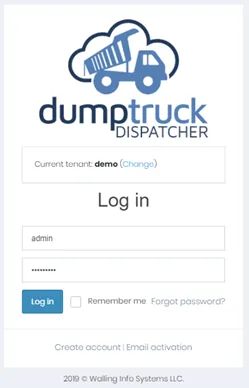
- Enter your login credentials on the login screen. You’ll need to set the tenant under tenant control by clicking the “Change” link and entering your tenant name.
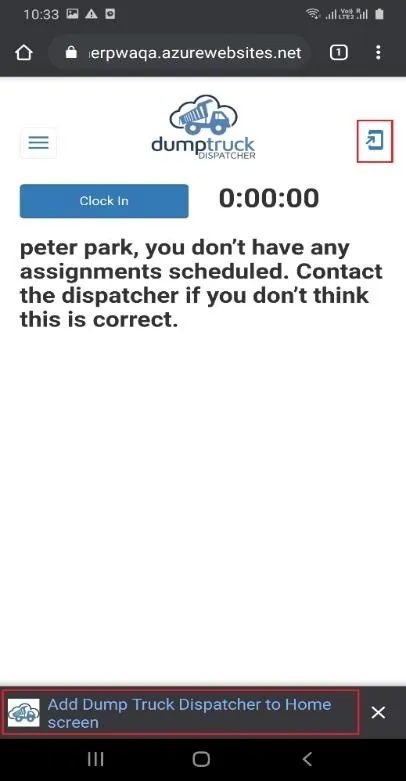
- Click once anywhere on the screen.
- An option to add the application to the home screen will be displayed at the bottom of the screen as shown in the image below (Also, a small icon will be shown next to the “dump truck dispatcher” logo) which can also be used to add the application to home screen)
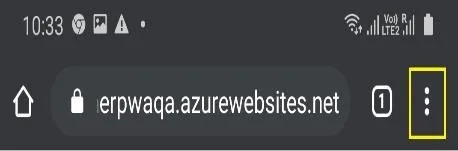
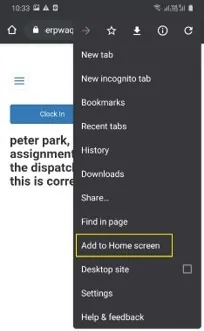
- Another way of adding the application to the home screen is by clicking on the icon with 3 vertical dots near the top right in the chrome browser, and then selecting the “add to home screen” option. This is shown in the image to the right.
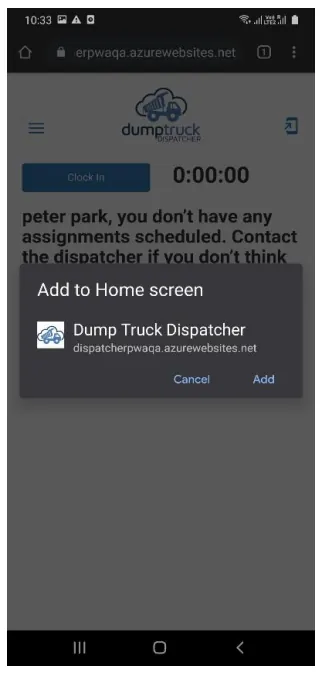
- Once “Add to Home screen” is selected, a small confirmation dialog will be displayed where you should click “Add” to add the application to the Home screen.
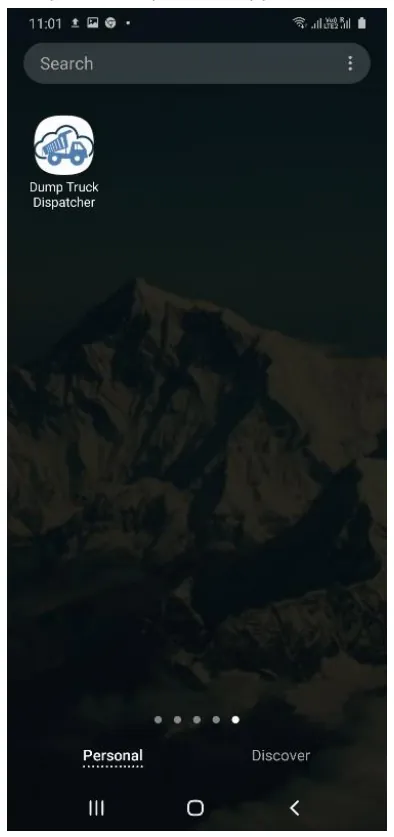
- After adding the driver application to the home screen, the “Dump Truck Dispatcher” app icon is available from your home screen to be easily started.